Icons in the Markers tab of the Toolbar (along with those in the Right Mouse tab) allow reassigning the function or “mouse mode” of:
 on Mac)
in the ChimeraX graphics window
on Mac)
in the ChimeraX graphics window
(On Windows or Linux, right-click elsewhere in the ChimeraX interface raises a context menu.)
The icon for the current right-mouse assignment is highlighted in the Toolbar. A specific mouse button can only be assigned one function at a time.
With the related mousemode command, functions can be assigned to all mouse buttons (not just the right) and to scrolling, alone and in combination with modifier keys. See also: vr button, Trackpad preferences
Clicking any of the icons in the Markers tab shows the Marker Placement tool, if not already shown.
| icon | mousemode function | description |
 |
mark maximum | add marker at the nearest local maximum in volume data above the threshold along the line of sight |
 |
mark plane | add marker in single-plane volume display |
 |
mark surface | add marker at the nearest surface point along the line of sight |
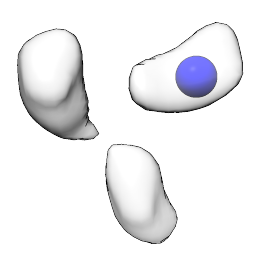 |
mark center | add marker at the geometric center of the clicked surface blob, ignoring other blobs |
 |
mark point | Place marker at the tip of the hand-controller cone in virtual reality |
 |
link markers | select and link successively clicked markers |
 |
move markers | drag marker to reposition |
 |
resize markers | drag to adjust marker/link radii |
 |
delete markers | delete markers and links |