Icons in the Map tab of the Toolbar
act on volume models such as density maps.
They apply to the displayed models only
(those with  checkboxes in the
Model Panel
checked for themselves and any parents).
See also:
Medical Image icons,
making images
checkboxes in the
Model Panel
checked for themselves and any parents).
See also:
Medical Image icons,
making images
Clicking an icon shows the executed command in the Log. Map icons act on the currently selected volume models, if any (specified as sel), otherwise the currently displayed volume models (specified as a list of model numbers). There may be alternative commands for performing the same action.
| icon | description | command |
 |
show map | volume show |
 |
hide map | volume hide |
 |
isosurface | volume style surface |
 |
mesh isosurface | volume style mesh |
 |
image display | volume style image |
 |
toggle transparency of surface or mesh
(if a mix of transparent and opaque surfaces, change all to opaque) |
volume with the transparency option |
 |
toggle outline box | volume with the showOutlineBox option |
 |
step 1, full resolution of data | volume step 1 |
 |
step 2, subsampled at every other point | volume step 2 |
 |
single Z-plane at the center of the
current region;
assign right mouse button to
move planes
 |
volume
planes z
style image
imageMode "full region"
+ mousemode right "move planes" |
 |
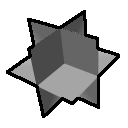
tilted-slab
image display, with initial slab in the middle of the data,
10 planes thick and perpendicular to the data Z axis;
assign right mouse button to
rotate slab
 |
volume
with style image
and imageMode "tilted slab"
(exact command depends on the data) + mousemode right "rotate slab" |
 |
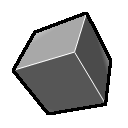
XYZ orthoplanes at the center of the full data;
assign right mouse button to
move planes
;
see also ui view |
volume
to set orthoplanes with
style image region all
(exact command depends on the data) + mousemode right "move planes" |
 |
full region (uncrop, unzone, show dust);
assign right mouse button to crop volume
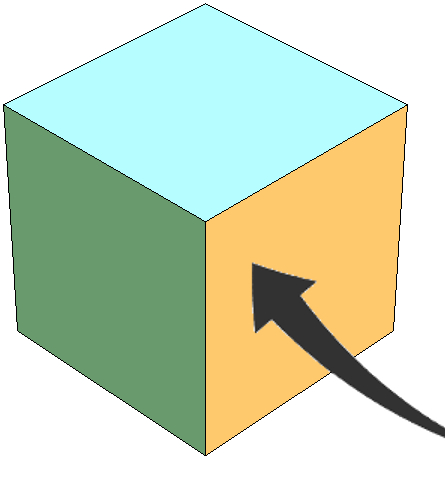 |
volume region all
imageMode "full region"
+ mousemode right "crop volume" |
 |
zone map near atoms; use full region (above) to unzone | volume zone map near displayed atomic models (using only selected atoms, if any, otherwise all) within a distance range of 6 times the maximum grid spacing along X,Y, or Z |
 |
color map near atoms | color zone map near displayed atomic models (using only the selected atoms, if any, otherwise all) within a distance range of 6 times the maximum grid spacing along X,Y, or Z |
 |
hide dust; use full region (above) to show dust | surface dust the displayed maps (acting on selected maps only, if any, otherwise all) using a size limit of 10 times the maximum grid spacing along X,Y, or Z |
 |
fit in map |
fitmap #N inMap #M
(fitting displayed models, either atomic into map or map into map, favoring selected models when more than two are displayed; if only two map models are displayed, fitting the selected or lower-model-number one into the other) |
 |
difference map |
volume subtract
#N #M minRms
(subtracting the higher-model-number of two maps total or selected from the other) |
 |
smooth by Gaussian filtering |
volume gaussian #N sDev 6
(where N is the model number of a single selected map) |